Lomi’s Model Context Protocol (MCP) server lets an AI agent operate your desktop workspace through 74 tools. Ask the agent to run a test in a Lomi terminal, inspect a page, edit a loaded file, investigate Git changes or test an app on a managed Android device.
You manage access in Settings > Agent control. With YOLO mode off, each connection needs your approval, selected workspaces and permissions. The built-in Chat AI uses the same tools and access controls.
Platform and version: This guide describes application source version 0.5.0, reviewed on 30 September 2026. Agent control is enabled on macOS 14 or later with Apple Silicon. Windows, Linux and Intel Macs are not qualified and are blocked by the current host check. This source review does not establish availability in a published installer. Implementation and verification records the exact source snapshot.
How it works
Section titled “How it works”- You give an MCP-compatible agent a task.
- The client calls a Lomi tool over its local stdio connection.
- Lomi checks the connection’s permissions, resource identity and revisions.
- The native application performs the action, using the existing terminal, editor, browser, Android or Chat runtime.
- The agent receives a structured result, an operation to monitor or a bounded observation such as text or a PNG.
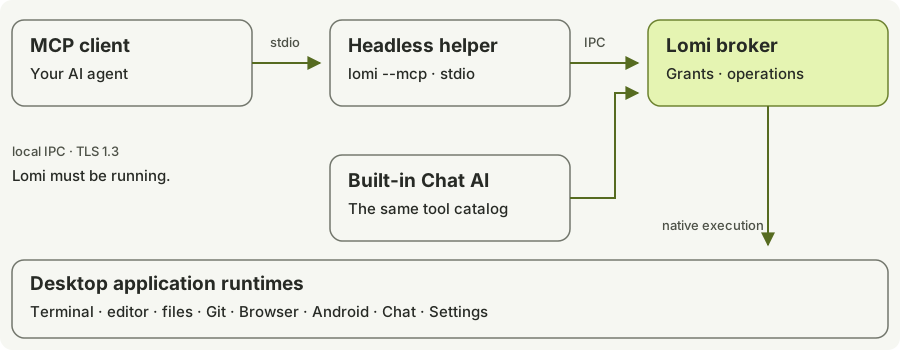
The client starts the application’s headless --mcp entry point. That process connects to the running desktop app using authenticated local IPC; it does not own a second set of terminals or devices. Lomi must be open and its server running. There is no hosted MCP URL, API key or OAuth login for this connection. Architecture explains discovery, authentication and the internal Chat route.
1. Start the server
Section titled “1. Start the server”Open your project in Lomi, then open Settings > Agent control and select Start server.
On the first launch without a saved startup preference, choose Enable automatic start or Keep disabled. Later, use Preferences > Start MCP server when Lomi opens. This preference controls future launches; the server button controls the current session.
Automatic startup starts the server. With YOLO off, it does not approve clients.
2. Connect your agent
Section titled “2. Connect your agent”In Connect an agent, choose an installed CLI and select Add Lomi to …. Lomi registers its executable and signed discovery arguments in the client’s user configuration. Restart or reload the client to establish the MCP connection.
The current picker supports Claude Code, Codex, Gemini CLI, GitHub Copilot CLI, Cursor CLI, OpenCode, OpenClaw, Hermes Agent, Kilo Code CLI, Qwen Code, Kiro CLI, Mistral Vibe, Kimi Code CLI, Grok Build and Antigravity CLI when their executables are found in the supported local shell environment.
Use All client configurations > Set up all eligible clients for bulk setup. A detected agent running in a Lomi terminal can also offer Enable … Lomi MCP in the status bar. Client configuration covers locations, custom profiles and manual setup.
3. Approve its session
Section titled “3. Approve its session”Ask the agent:
Use Lomi MCP to check your connection status. Show me the pairing request ID and wait for approval.
The agent calls lomi_status. Match its pairingRequestId to the pending request in Agent control > Sessions. Choose the intended project and workspace, explicitly check any additional existing workspaces and enable the permissions required for your task. For terminal tasks, choose Approved terminal shell, then select Approve session.
The displayed client name is a label, not proof of identity. Match the request ID. Permissions apply to this connection; another client using the same name needs its own approval.
4. Select a workspace
Section titled “4. Select a workspace”Ask the agent:
List the workspaces approved for this connection, connect to my selected workspace and list its panels.
The sequence is lomi_workspace_list → lomi_connect → lomi_panel_list. The agent keeps the workspace ID, current domain revision and returned retryEpoch. Tools use explicit target IDs; merely changing the selected workspace does not expand the grant.
Example prompts
Section titled “Example prompts”These examples assume the corresponding permissions are enabled. With YOLO off, approve individual requests when Lomi presents them.
Terminals and tests
Section titled “Terminals and tests”Create a Lomi terminal in this workspace, run
pnpm test, wait for the observed completion and show the exit code and relevant output.
Read the screen of the Lomi terminal you control. Do not resend the command if its outcome is uncertain.
Files and editor
Section titled “Files and editor”Find references to
createWorkspacein project files. Open the relevant file, read its current editor buffer and propose an edit.
Apply the agreed edit to the loaded buffer. Keep it unsaved so I can review it in Lomi.
Browser
Section titled “Browser”Open
http://localhost:3000in an isolated Lomi browser, inspect its semantic snapshot and report JavaScript errors. Take a screenshot of the visible viewport.
Android
Section titled “Android”Open the Android device I shared, start it, launch the approved app and inspect its UI and recent application logs.
Git, Chat and settings
Section titled “Git, Chat and settings”Read this repository’s status and staged diff. Explain the changes without modifying Git.
Read the saved draft in the Chat conversation I shared. Prepare a revised draft for review.
Request changing the default editor indentation to four spaces and let me review the change in Settings.
See workflows for the tool sequences and their limits.
Supported actions
Section titled “Supported actions”| Area | Actions |
|---|---|
| Connection and operations | Check status, diagnose access, select an approved workspace, inspect/cancel operations and read operation events. |
| Projects, workspaces and panels | List, create or rename workspaces; request another project; focus, rearrange or close authorized views and workspaces. |
| Terminal | Create Bash/Zsh terminals, claim input, run a command, send exact text/keys, read output or screen and interrupt an observed command. |
| Browser | Open isolated pages, navigate approved origins, inspect DOM, interact with controls, read logs, capture PNGs and request bounded file transfers. |
| Files and editor | List/search/read disk files, import/export artifacts, create/rename/move/Trash entries, open previews, read/edit loaded buffers and save exact revisions. |
| Git | Read status, diffs, history, commits and redacted remotes; open read-only views; request stage, unstage, commit, fetch, push, discard or pull. |
| Android | Inspect shared devices, plan/apply SDK setup, manage devices, open/start/stop, observe/input/capture, import/install APKs and launch/read logs for approved packages. |
| Chat AI | List/read/open shared conversations, create one, change a saved draft, export text, approve a send and stop an exact request. |
| Settings | Read nonsecret preferences, open a named Settings section and request supported editor, terminal, shortcut or built-in theme changes. |
The tool reference names all 74 tools and links to their complete input/output schemas. Operations and retries explains how an accepted request becomes a confirmed result.
YOLO mode
Section titled “YOLO mode”Preferences > Automatically approve requests (YOLO) automatically pairs local clients and approves supported MCP operations across all workspaces. This includes file changes, terminal execution, Git, browser transfers, Android management and Chat messages that can incur provider charges. The choice is persistent and defaults to off.
Changing this mode disconnects current sessions and ends pending authority. Reconnect to use the new policy. Native validation, resource limits and unsaved-file guards remain active; client-side approval is independent. Read the YOLO access model before enabling it.
Limitations
Section titled “Limitations”- Terminal commands run with your host account’s access. The project working directory is not an OS sandbox.
- Browser origin permissions govern Lomi’s supported navigation and tools; they are not a network firewall. The browser uses the native system engine and synthetic DOM input.
- Observations are bounded. Missing DOM nodes, Android UI nodes, logs or search results can reflect omitted or unsupported content.
- Git linked worktrees, some Git histories and unqualified plugin layouts are unsupported by the relevant paths. Third-party theme selection/import and plugin management have no MCP tools.
- Restarting Lomi ends approvals and live connection authority. Signed registration remains usable, but the client must reconnect and, with YOLO off, pair again.
- A timeout or cancellation can follow a real effect. Inspect
effectStateand actual resources before making another request.
To end access, disconnect the client, use Sessions > Stop all sessions, or select Turn off server. See troubleshooting and recovery.
Source: shared MCP catalog, native control and host gate, Agent control interface.